![Laudio_Wordmark_RGB_Color (1)-3.png]](https://7157272.fs1.hubspotusercontent-na1.net/hubfs/7157272/Laudio_Wordmark_RGB_Color%20(1)-3.png)
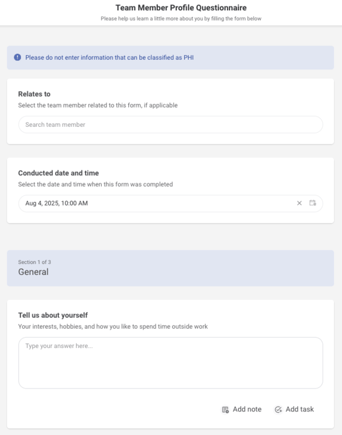
This article explains how to distribute InForms among team members and outlines best practices for collecting data. It covers four methods: email, public link, QR code, and by adding responses directly through the user interface.
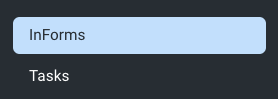
- On the left-hand navigation bar, click InForms.
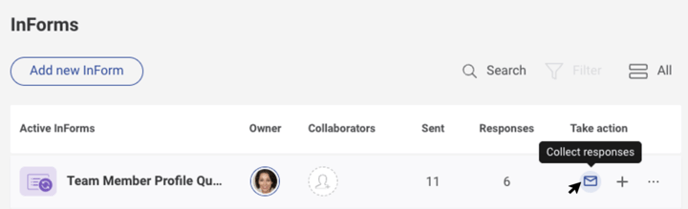
- Click Collect Responses (the mail icon).
- A pop-up window with an email will populate where you can chose the email recipient within the "To" field (this can be any individual or group within your organization).
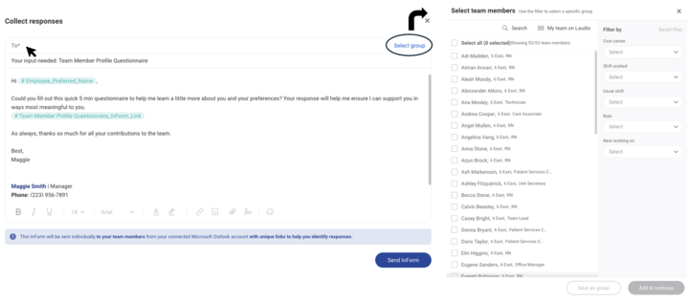
- Click Send InForm on the bottom right-hand side.
Public Link
- On the left-hand navigation bar, click InForms.
- Click the "..." to the right of the form and click Share Public Link.
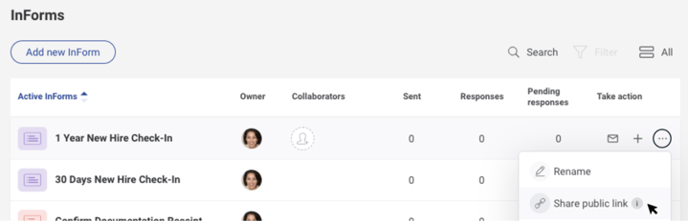
-
The link will be copied to the clipboard and can be pasted wherever needed.
QR Code
- On the left-hand navigation bar, click InForms.
- Click the "..." to the right of the form, and click Generate a QR Code.
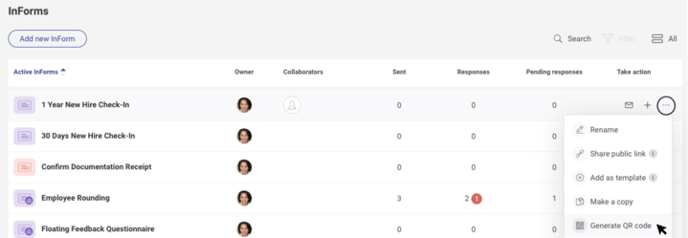
- A new tab will open with the QR code available to share or print.
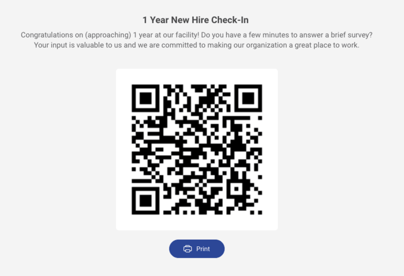
Adding Responses in User Interface
- On the left-hand navigation bar, click InForms.
- Click "Add Response" on the right on the form.
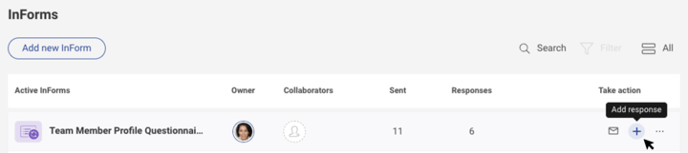
- The form will populate on the next page. Fill in the responses to each question and click Submit Responses on the bottom of the page when complete.