![Laudio_Wordmark_RGB_Color (1)-3.png]](https://support.laudio.com/hs-fs/hubfs/Laudio_Wordmark_RGB_Color%20(1)-3.png?height=41&name=Laudio_Wordmark_RGB_Color%20(1)-3.png)
Conditional logic allows an InForm to display follow-up questions based on a respondent's answer. This helps keep forms focused by showing only relevant questions, creating a simpler experience for users and improving the quality of collected data.
Key Benefits:
- Show only relevant questions based on a respondent's answers.
- Reduce the time required to complete forms.
- Improve data quality by guiding respondents through the appropriate question flow.
Steps to Add Conditional Logic
1. Open the InForm that requires updating.
-
Note: If the InForm is classified as Organizational, it can only be updated by users with the appropriate permissions. Contact a health system administrator or Laudio Support for assistance.
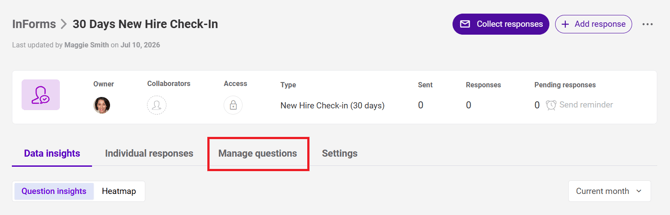
2. Select the Manage Questions tab.
3. Locate the question that will trigger the conditional logic.
-
Note: Conditional logic can only be added to question types that use predefined answer options.
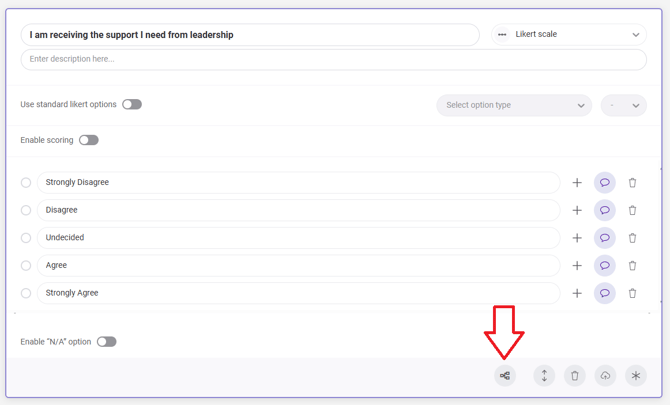
4. Click the Conditional Logic (cascade) icon in the bottom-right corner of the question.
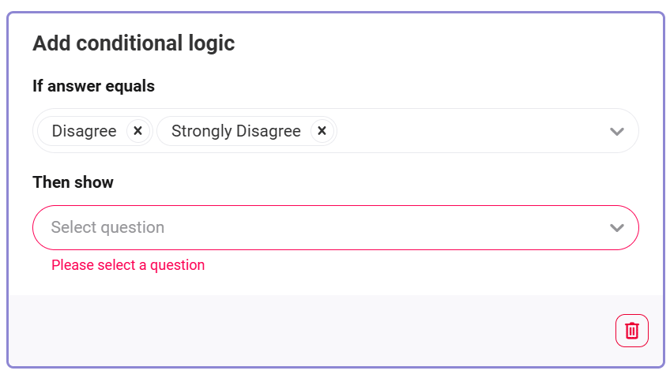
5. In the slide-out panel, select the response that should trigger additional questions in the If Answer Equals field.
-
Multiple response options can be configured to display the same follow-up question by multi-selecting options for the If Answer Equals field.
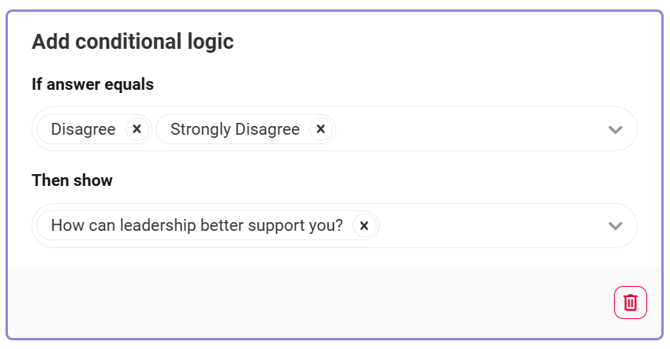
6. In the Then Show field, select one or more follow-up questions that should appear when the selected response is chosen.
-
Note: Create all follow-up questions before configuring conditional logic. Questions that do not already exist will not appear in the Then Show list.
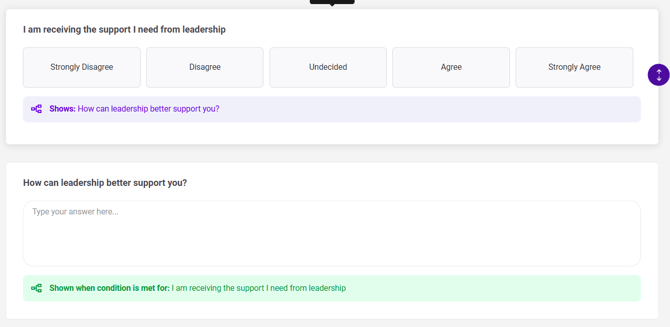
7. Save the changes. Once saved, a visual indicator appears on the questions included in the logic flow, making it easy to identify how questions are connected.
FAQs
Q: Which forms support conditional logic?
A: Conditional logic can be added to privately created InForms and Scripts.
Q: Why can't I select a question for conditional logic?
A: Some question types do not support conditional logic. The trigger question must use predefined answer options that can be selected from a list.
Q: Why doesn't my follow-up question appear in the Then Show list?
A: Follow-up questions must be created before setting up conditional logic. Create the question first, then return to the conditional logic settings.