![Laudio_Wordmark_RGB_Color (1)-3.png]](https://support.laudio.com/hs-fs/hubfs/Laudio_Wordmark_RGB_Color%20(1)-3.png?height=41&name=Laudio_Wordmark_RGB_Color%20(1)-3.png)
There are several ways to customize an individual’s user access in Laudio. The most common scenarios are outlined below.
Steps to Mirror Another User’s Account
In some cases, a leader may not have direct reports listed in the HR system but still helps manage a team. The mirror access feature allows these users, such as assistant managers or shift leads, to view and manage another leader’s team in Laudio.
- Navigate to the person’s name on the main user page, then click the row that corresponds with their name. A slide-out panel will appear.
- Select the “Access” tab.
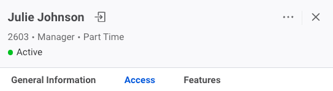
- Click “+ Add another,” then choose “Edit.”
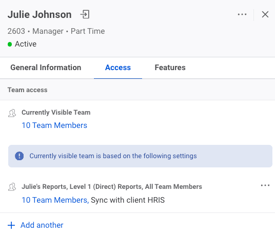
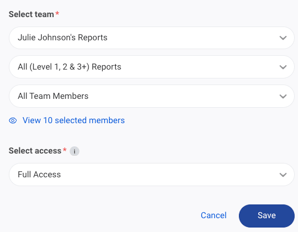
- In the first dropdown, select the manager whose team the user should mirror.
- Example: If the user is an assistant manager who should see the team manager’s reports, select that manager in the dropdown.
- In the second dropdown, choose the level of reports to display based on the HR hierarchy.
- In the third dropdown, select the specific team members or groups that should be visible to the user.
- Click “Save” to apply the changes.
Granting or Removing Access to Features
Features can be turned on or off for individual users when needed. If multiple users share the same access needs, it’s often more efficient to manage them as a group instead (see Managing Groups for details). Follow the steps below to grant or remove access to a specific feature for one user.
-
Click the user’s name so that their profile slide-out appears on the right.
-
Click “Features.”
-
Toggle individual features on or off as needed for that user.

Granting Access to Patient Rounding
If your organization does not have auto provisioning for patient rounding turned on at your organization, follow the steps below to provision patient rounding users. If you woul dlike to explore auto-provisioning for patient rounding, reach out to Support@Laudio.com.
- Navigate to the person’s name on the main user page, then click the row that corresponds with their name. A slide-out panel will appear.
- Select the “Access” tab.
- Under Location Access, click "+ Add facility" or "+ Add department", then select the locations where the user should have visibility into patients for rounding.

- Click “Save” to apply the changes.