![Laudio_Wordmark_RGB_Color (1)-3.png]](https://support.laudio.com/hs-fs/hubfs/Laudio_Wordmark_RGB_Color%20(1)-3.png?height=41&name=Laudio_Wordmark_RGB_Color%20(1)-3.png)
Archiving InForms allows leaders to remove forms that are no longer in use while preserving historical response data. This helps keep the InForms workspace organized and ensures users focus on active forms without losing access to past reporting and exports.
Key Benefits
- Remove outdated or unused forms from the active list.
- Keep forms, filters, and menus organized and easier to manage.
- Preserve historical data for reporting and exports.
Archive an InForm
When a form is archived, it is removed from the active forms list, but all associated data remains available for reporting and exports.
1. Click InForms from the left-hand navigation menu.

2. Locate the form to archive.
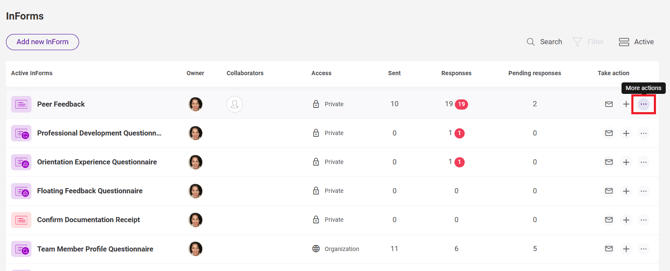
3. Click the More Actions (...) menu.
4. Click Archive.
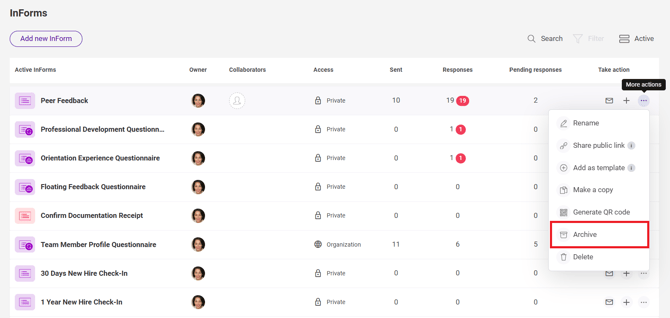
5. Review the confirmation message and confirm the action.

View, Restore, or Delete Archived InForms
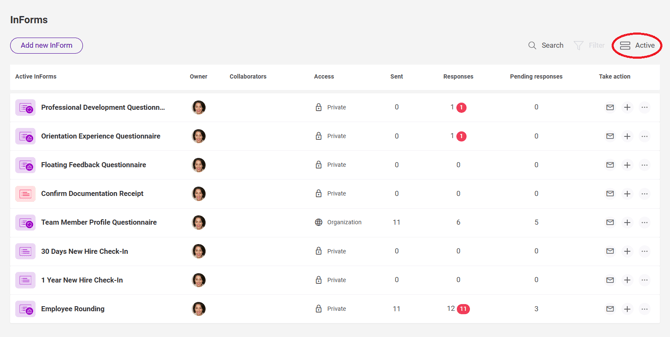
1. Click the status filter in the upper-right corner of the page that displays Active.
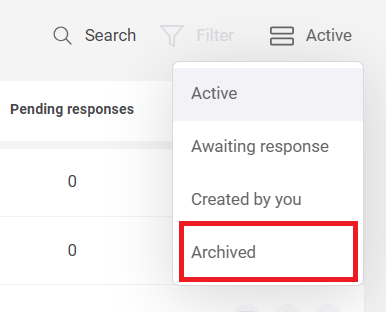
2. Select Archived to view archived forms.
3. Locate the desired form.
4. Choose one of the following actions:
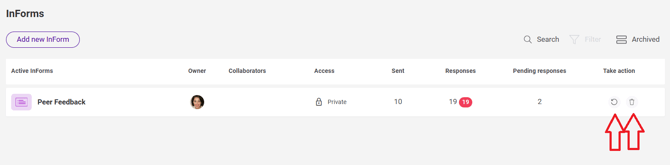
- Click the Restore icon to return the form to the active list.
- Click the Delete (trash) icon to permanently remove the form.
- Important: Permanently deleting a form cannot be undone and is generally not recommended unless the form and its data are no longer needed.
FAQs
Q: Does archiving delete form data?
A: No. Archiving removes the form from the active list, but all historical data is preserved and remains available in reporting and exports.
Q: Can archived forms be restored?
A: Yes. Owners and collaborators can restore archived forms at any time.
Q: Are archived forms included in exports?
A: Yes. If the selected filters, date range, and related entities include an archived form, its data can appear in exports.
Q: Who can archive or restore forms?
A: Form owners and collaborators can archive and restore both Private Forms and Organizational Forms.
Q: Can templates be archived?
A: No. InForm templates are not affected by the archiving feature.