![Laudio_Wordmark_RGB_Color (1)-3.png]](https://support.laudio.com/hs-fs/hubfs/Laudio_Wordmark_RGB_Color%20(1)-3.png?height=41&name=Laudio_Wordmark_RGB_Color%20(1)-3.png)
Categories help organize InForm responses by assigning standardized labels to questions. These categories support consistent reporting, data analysis, and performance tracking across the organization.
Laudio provides predefined category groups and sub-categories based on industry best practices. These categories are standardized and cannot be customized by users.
Key Benefits:
- Improve reporting and analysis with standardized data classification.
- Track trends and performance across common organizational priorities.
- Create consistent reporting across teams and departments.
- Easily filter and analyze exported form data by category.
Add Categories to InForm Questions
1. Click InForms from the left-hand navigation menu.
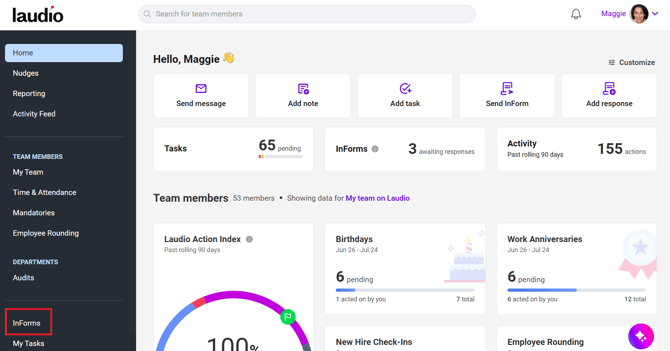
2. Open the InForm that contains the question to be categorized.
-
Note: For Organizational Forms, categories are managed by administrators or designated collaborators and cannot be modified by individual users.
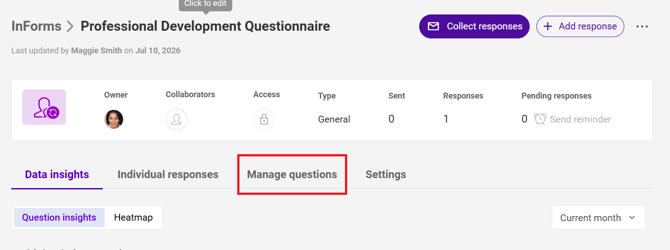
3. Click Manage Questions.
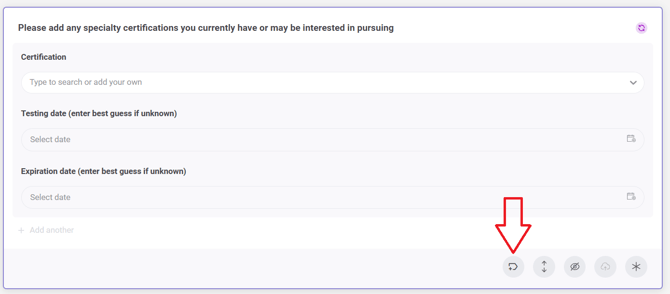
4. Locate the question and click the Select Category icon.
5. Select one or more sub-categories from the available list.
-
Note: When exporting form data, the Categories Applied column can be used to sort and analyze responses by category.
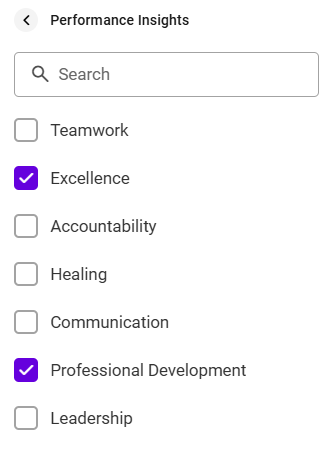
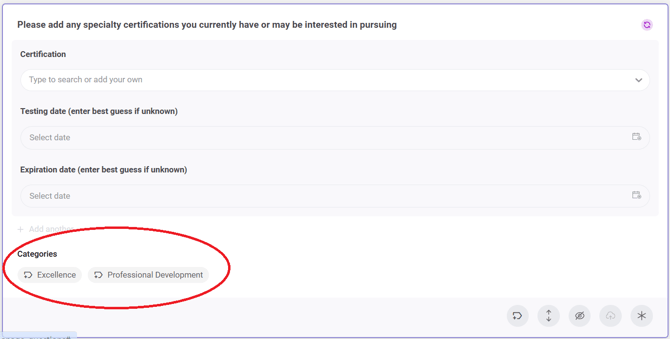
6. Verify the selected categories appear on the question.
FAQs
Q: Can custom categories be created?
A: No. Categories and sub-categories are predefined in Laudio and cannot be customized.
Q: Can more than one category be assigned to a question?
A: Yes. Multiple sub-categories can be assigned to a single question.
Q: How are categories used in exports?
A: Exported form data includes a Categories Applied column, making it easier to filter, sort, and analyze responses by category.