![Laudio_Wordmark_RGB_Color (1)-3.png]](https://support.laudio.com/hs-fs/hubfs/Laudio_Wordmark_RGB_Color%20(1)-3.png?height=41&name=Laudio_Wordmark_RGB_Color%20(1)-3.png)
Laudio’s Audits workflow allows leaders to create, edit, and manage audit forms to support compliance and process evaluations. Audit forms are typically managed at the system or team level to ensure data consistency. This article applies only when an individual audit form needs to be created.
Key Benefits
- Centralized location for all audit forms
- Enables collaboration across leadership teams
- Supports goal tracking and compliance reporting
Creating a New Audit Form
- Click Add Audit.
- Click + Add New in the top right of the drop down.
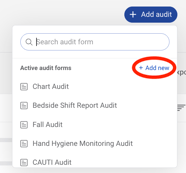
- Click Start From Scratch.
- Enter a title, cost center information, and configure a target score (if applicable).
- Add collaborators for shared access.
- Any questions to the form as needed.
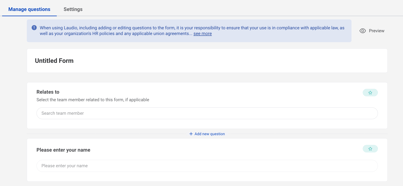
- The form will automatically save any updates.
Editing an Existing Audit Form
- Click the Audit Forms tab.
- Click the form that needs to be edited.
- Click Manage Questions.
- Edit any questions as needed.
- One note is that once a question receives responses, the question cannot be edited. In these cases, hide the question that needs editing and recreate the question as appropriate.
- The form will automatically save any updates.
FAQs
Q: Can I duplicate an existing form?
A: Yes, you can make a copy of an existing Audit form by clicking the "..." and selecting the option "Make a Copy"