![Laudio_Wordmark_RGB_Color (1)-3.png]](https://support.laudio.com/hs-fs/hubfs/Laudio_Wordmark_RGB_Color%20(1)-3.png?height=41&name=Laudio_Wordmark_RGB_Color%20(1)-3.png)
Laudio provides multiple ways to share audit results, depending on when and where the audit is reviewed. Leaders with the appropriate access can send results directly after completion or later from the audit history.
Option 1: Share Results Immediately After Completing an Audit
- Complete an audit by submitting an audit form.
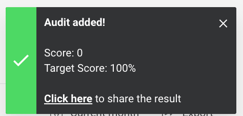
- In the upper right corner of the page, there is a small pop up that displays the audit score .
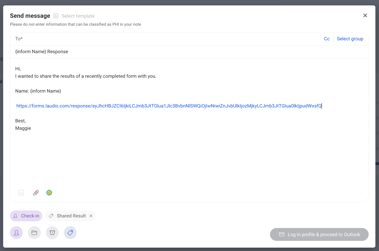
- In the popup, click the link to share the results. An email will populate for distribution.
-
Edit the message as needed, select the recipients, and then send the message.
Option 2: Share Results from the Completed Audits List
-
Click the Audit Forms tab.
-
Click the Audit form with responses that need to be shared.
- Under the Individual Audits tab, find the audit response that should be shared.
-
Click the ellipsis (...) next to the audit.
-
Click Share.
-
Choose how the results should be shared and complete the message.
Note: Collaborator access is required to use this option.
FAQs
Q: Who can share audit results?
A: Leaders who completed the audit and leaders with collaborator access to that audit can share results.
Q: Can the message be edited before sending?
A: Yes. All sharing options allow edits to the message before it is sent.
Q: Is scoring required to share audit results?
A: No. Scoring enhances the message template but is not required to share audit results.