![Laudio_Wordmark_RGB_Color (1)-3.png]](https://support.laudio.com/hs-fs/hubfs/Laudio_Wordmark_RGB_Color%20(1)-3.png?height=41&name=Laudio_Wordmark_RGB_Color%20(1)-3.png)
The Tasks workflow helps leaders create, organize, and manage work in one place. All tasks created by or assigned to a leader appear in the Tasks table for easy tracking and follow-up.
Key Benefits
- Create tasks with clear ownership, priority, and due dates.
- Keep all created and assigned tasks in one organized view.
- Use filters and saved views to focus on the most important work.
Create a Task
All tasks created by or assigned to a leader appear in My Tasks.
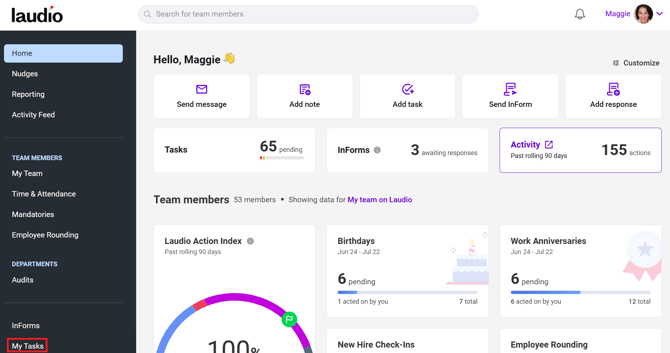
1. Click My Tasks in the left navigation.
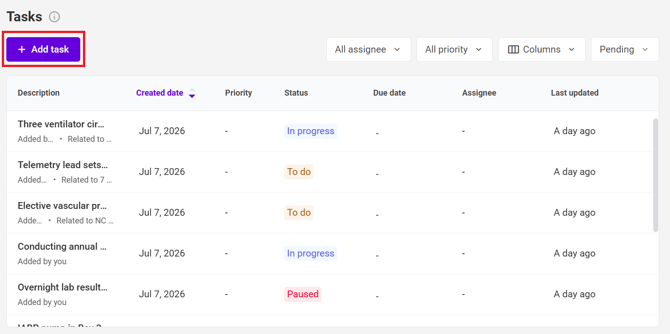
2. Click Add Task.
3. Enter a Description, select what the task Relates To, add any Assignees, and select a Status.
4. Add a Due Date, select a Priority, and add any Tags or Categories.
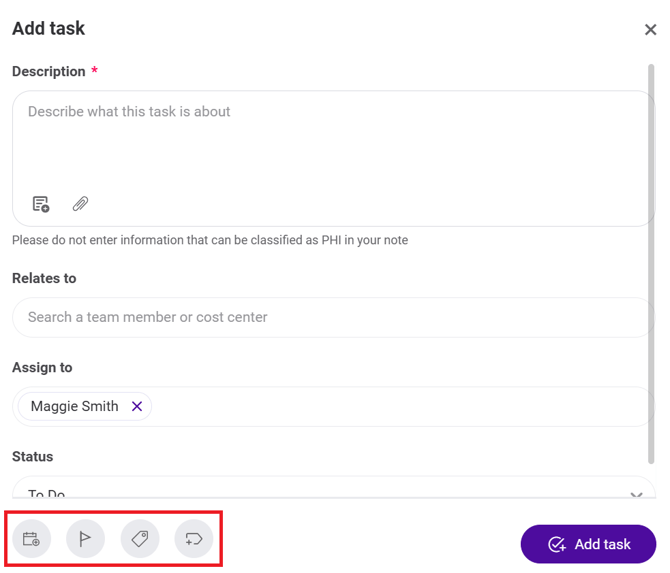
5. Click Add Task to save the task.
View, Update, or Complete a Task
1. Click My Tasks in the left navigation.
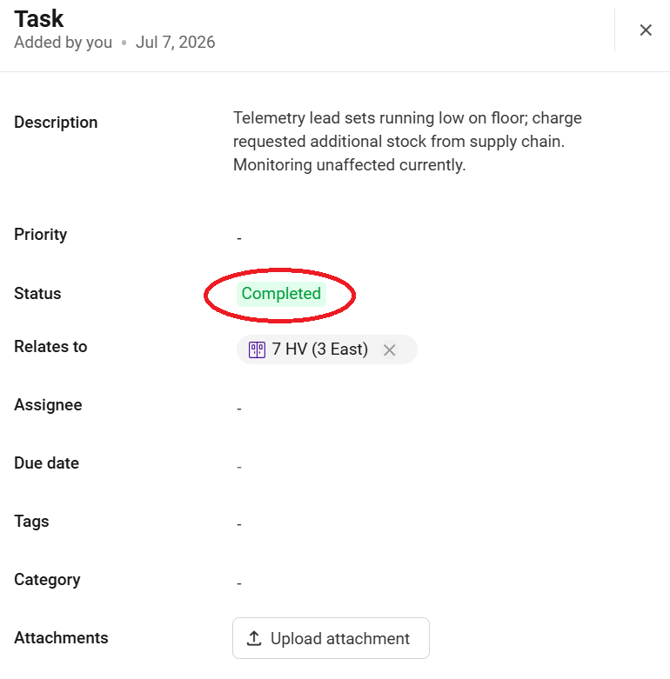
2. Click on a task to open the details panel. Any activity related to the task will also appear on this panel.
3. Update any desired fields.
4. Change the Status to Completed to remove the task from the active tasks list.
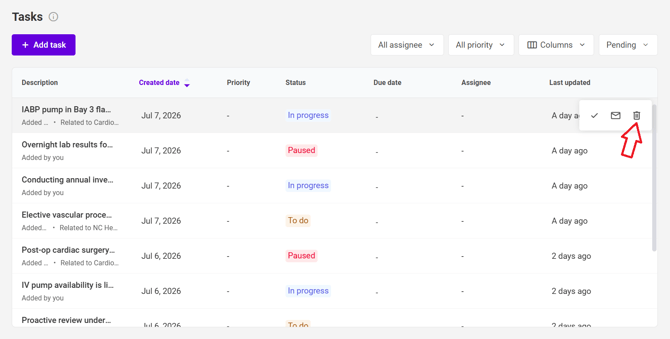
5. To delete a task, hover over the task and click the Delete icon.
- Only the creator of a task can delete it. The Delete option is hidden for all other users.
Filter Tasks
1. Click My Tasks in the left navigation.
2. Select filters such as Assignees, Priority, and Status.
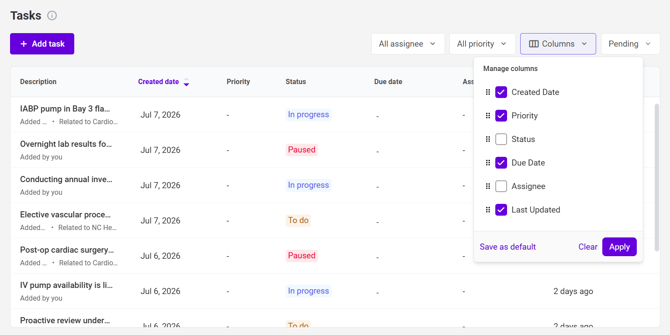
- Use the Columns filter to choose which columns appear in the table. Click Save as Default to save the column configuration for future use.
FAQs
Why did my task disappear after I updated it?
Tasks marked Completed are removed from the active view to keep the task list focused on open work.
Who can see a task?
A task must be created by or assigned to a user for it to appear in their My Tasks view.