![Laudio_Wordmark_RGB_Color (1)-3.png]](https://7157272.fs1.hubspotusercontent-na1.net/hubfs/7157272/Laudio_Wordmark_RGB_Color%20(1)-3.png)
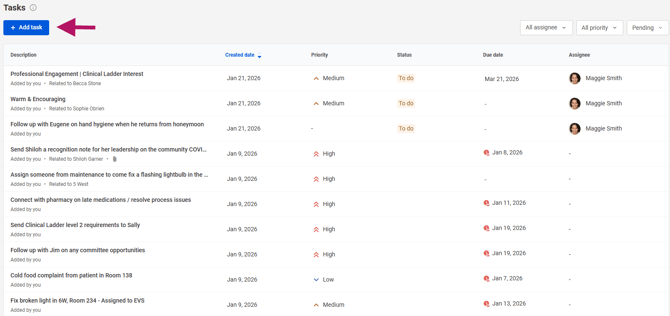
The Tasks workflow makes it easy for leaders to create, update, complete, and organize tasks in one place. Leaders can add key details like Description, Priority, Due Date, Status, Related To, and Assignees to ensure clear ownership and visibility. All tasks appear in the Tasks table, where leaders can open a task, review its details, and make updates as needed.
Key Benefits
-
Easily create tasks with clear ownership, due dates, and priority.
-
Access all assigned and created tasks in one organized table.
-
Use filters to highlight what matters most and save custom views for faster follow‑up.
Create a Task
-
Click Tasks in the left navigation.
-
Click New Task.
-
Enter the task Description.
-
Select a Priority.
-
Select a Due Date.
-
Select a Status.
-
Select Related To (team member, cost center, etc.).
-
Add Assignees.
-
Click Save.
View, Update, or Complete a Task
-
Open the Tasks table.
-
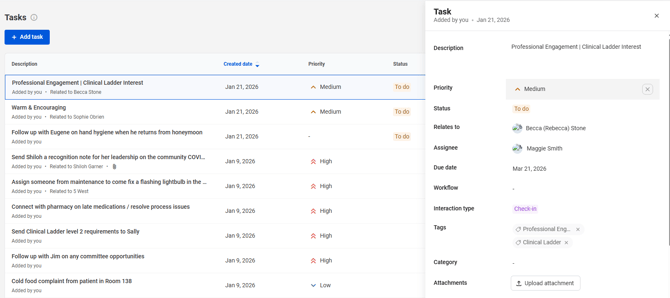
Click a task to open the details slide sheet.
-
Update fields such as Status, Due Date, or Priority.
-
Click Save.
-
Set the task to Completed to remove it from the active list.
Filter Tasks
-
Click Filters in the Tasks table.
-
Select filters such as Status, Priority, Due/Overdue, or Assignee.
-
Click Apply.
-
Click Save View to save the filter set
FAQs
Where do I find tasks I created or that are assigned to me?
All tasks appear in the Tasks table. This includes tasks created by the leader or assigned to them.
How do I view or update a task?
Open the Tasks table and select a task. The slide sheet will open, allowing updates to fields like Status, Due Date, or Priority. Click Save once updates are made.
How do I complete a task?
Open the task in the slide sheet, change the Status to Completed, and click Save. Completed tasks are removed from the active list.
How can I filter tasks?
Click Filters in the Tasks table. Choose filters such as Status, Priority, Due/Overdue, or Assignee, then click Apply.
Can I save my filter settings?
Yes. After selecting filters, click Save View to save the filter set for future use.
Why does a task disappear after I update it?
Tasks marked Completed are removed from the active view to keep the task list focused.