![Laudio_Wordmark_RGB_Color (1)-3.png]](https://support.laudio.com/hs-fs/hubfs/Laudio_Wordmark_RGB_Color%20(1)-3.png?height=41&name=Laudio_Wordmark_RGB_Color%20(1)-3.png)
The New Hire Check‑ins workflow helps leaders build early connections with new team members. Laudio makes it easy to know when it’s time to check in and keep those conversations organized in one place.
Key Benefits:
-
Laudio reminds you when it’s time to check in with new team members directly on your homepage
-
Check‑in feedback can be collected asynchronously or used to document in‑person or virtual conversations
-
Information collected during new hire check‑ins are saved to the team member’s profile for future reference and ongoing professional development
Steps to Complete a New Hire Check‑In
- Click the New Hire Check‑Ins widget on the homepage.
- Hover over the team member’s name to view available actions (add inform, send email, add note, and mark complete).
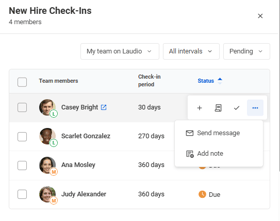
- Click the email icon to open a pre‑populated message. The message includes a form link for the team member to share information.
- Edit the message if needed, then click Send Message.
- After the team member submits their response, responses will be available for leader review and follow up on as needed. The responses will be saved to the team member profile, available in InForms, and visible in New Hire Check‑Ins while the interval is active.
- To document information from a 1:1 New Hire Check‑ins conversation conducted in person or virtually, click on the inform or note icon and enter your notes. These are saved automatically to the team member’s profile.
- To complete multiple check-ins at once, select the chosen team members and follow through with an action at the bottom of the slide out.
- Note: You can only group team members who are in the same check‑in period when completing check‑ins in bulk.
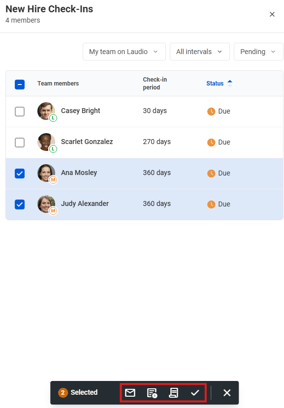
- Note: You can only group team members who are in the same check‑in period when completing check‑ins in bulk.
- Once the check‑in is complete, click Mark complete.
FAQs
Q: Can I edit the check‑in templates?
A: Check‑in templates are typically standardized using Laudio templates or templates created in partnership with your health system. Contact Laudio Support if you have questions or need assistance.
Q: How do I know when a check‑in is due?
A: Click the check‑in period (for example, “30‑day check‑in”) to view details about timing and due dates.
Q: Why don’t I see a new hire in my workflow?
A: Team members appear in the New Hire Check‑ins list based on their proximity to a scheduled check‑in interval. If you don’t see a new team member, they may not be near a check‑in window or may not be within your reporting hierarchy.